All integrations

Figma Community plugin

Import Scribeless templates from Figma

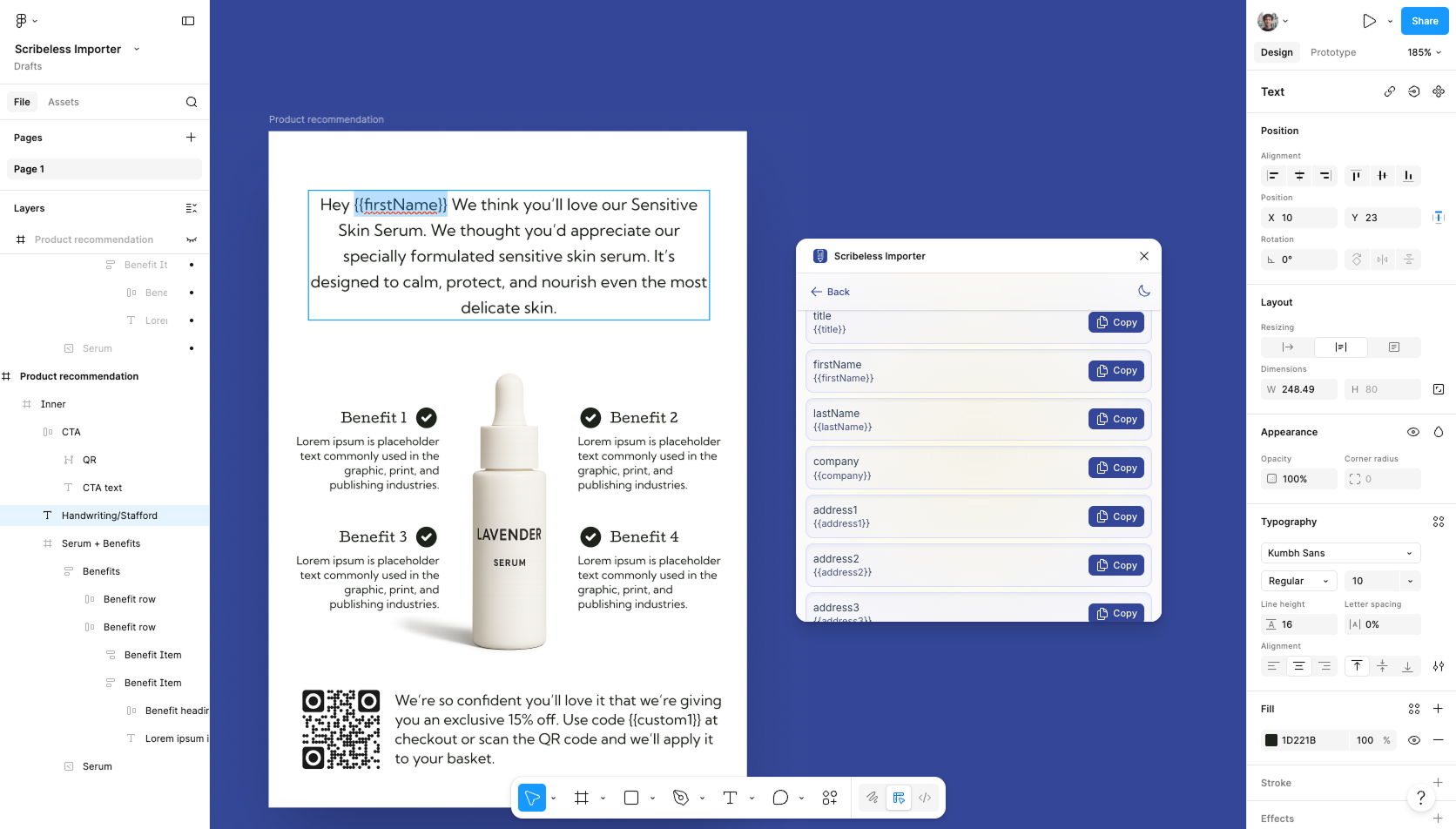
Design direct mail templates in Figma, then import selected frames into Scribeless with layout, images, text, variables, QR placeholders, and handwriting layers.

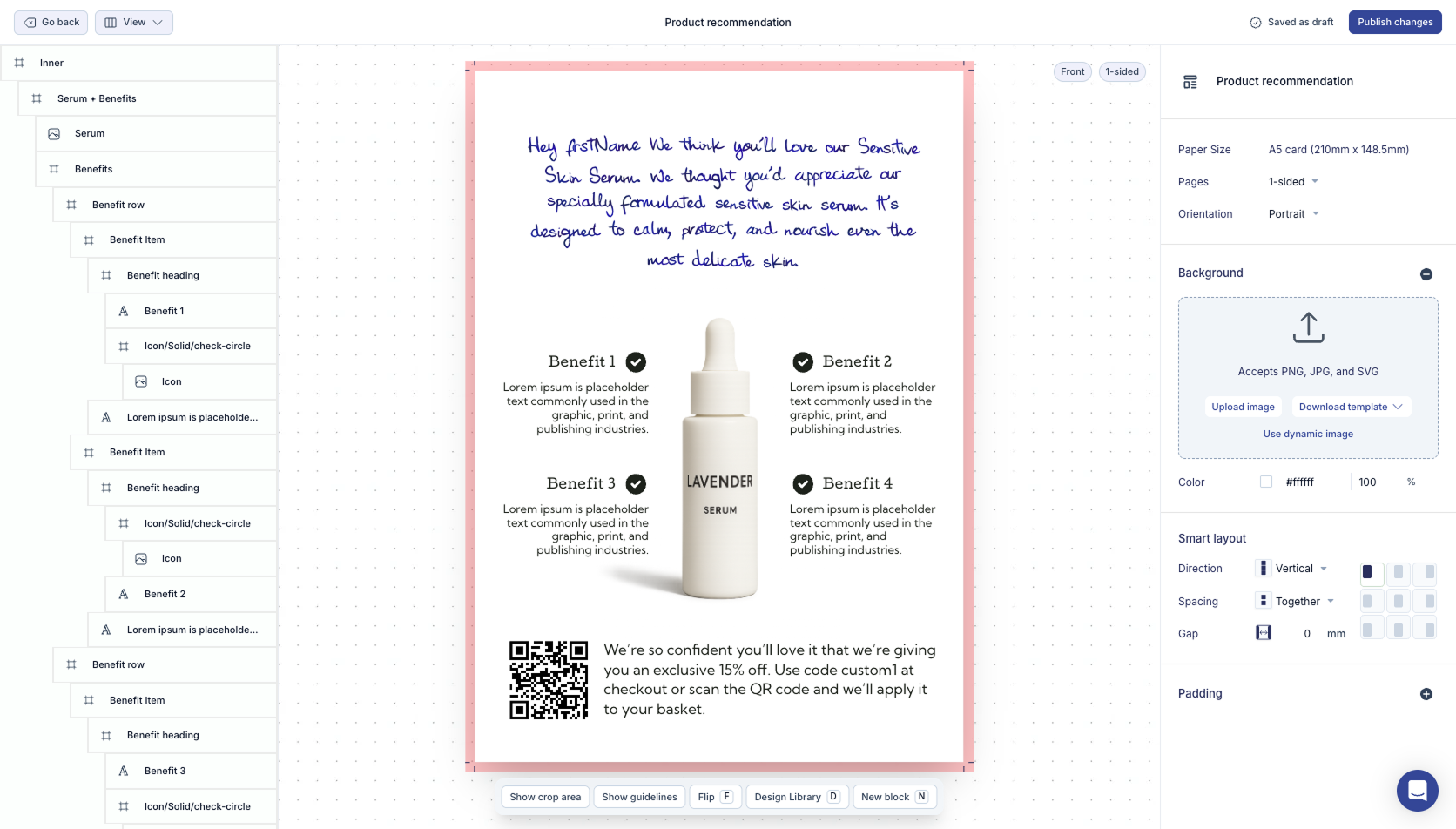
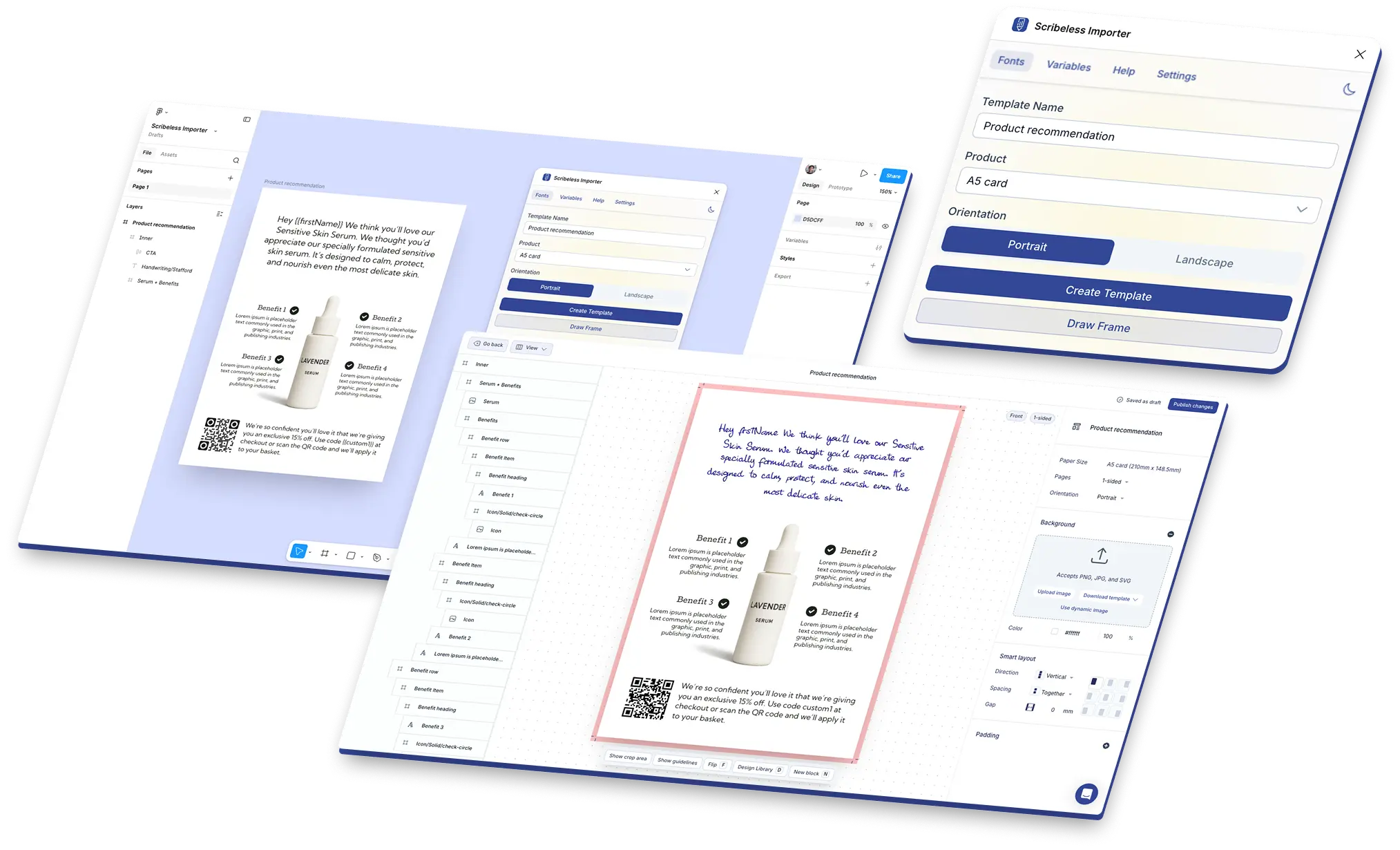
Figma design and Scribeless template editor mockups showing the Scribeless Importer workflow

Template path

Design in Figma. Import into Scribeless.

Use the importer when your design team wants to create the template layout in Figma, then hand it to Scribeless for template setup, personalization, and campaign use.

Frame import

Bring selected Figma frames into Scribeless

Select the frame, open the Scribeless Importer, choose the matching product and orientation, then create the template.

  • Works from a selected Figma frame
  • Carries across layout, images, text, and fonts
  • Supports postcards, flat cards, letters, and folded cards
  • Creates the imported template inside Scribeless
Template controls

Prepare variables, QR placeholders, and handwriting before import

Name the layers that should become Scribeless-specific elements before creating the template.

  • Copy standard Scribeless variables into text layers
  • Name QR layers QR, QR code, or qrcode
  • Rename handwriting text layers with handwriting/<family>
  • Review the imported template before using it in a campaign

Importer workflow

Create Scribeless-ready templates from Figma files.

The importer handles the handoff from Figma while Scribeless keeps production, campaign setup, handwriting, variables, and QR destinations under review.

Plugin setup

Install and open the Scribeless Importer

Install the Figma Community plugin, select the design frame, and open the importer inside the Figma file.

  • Use a frame that matches the Scribeless product, size, orientation, and page
  • Paste a Scribeless API key for the team where the template should be created
  • Enter a template name before import
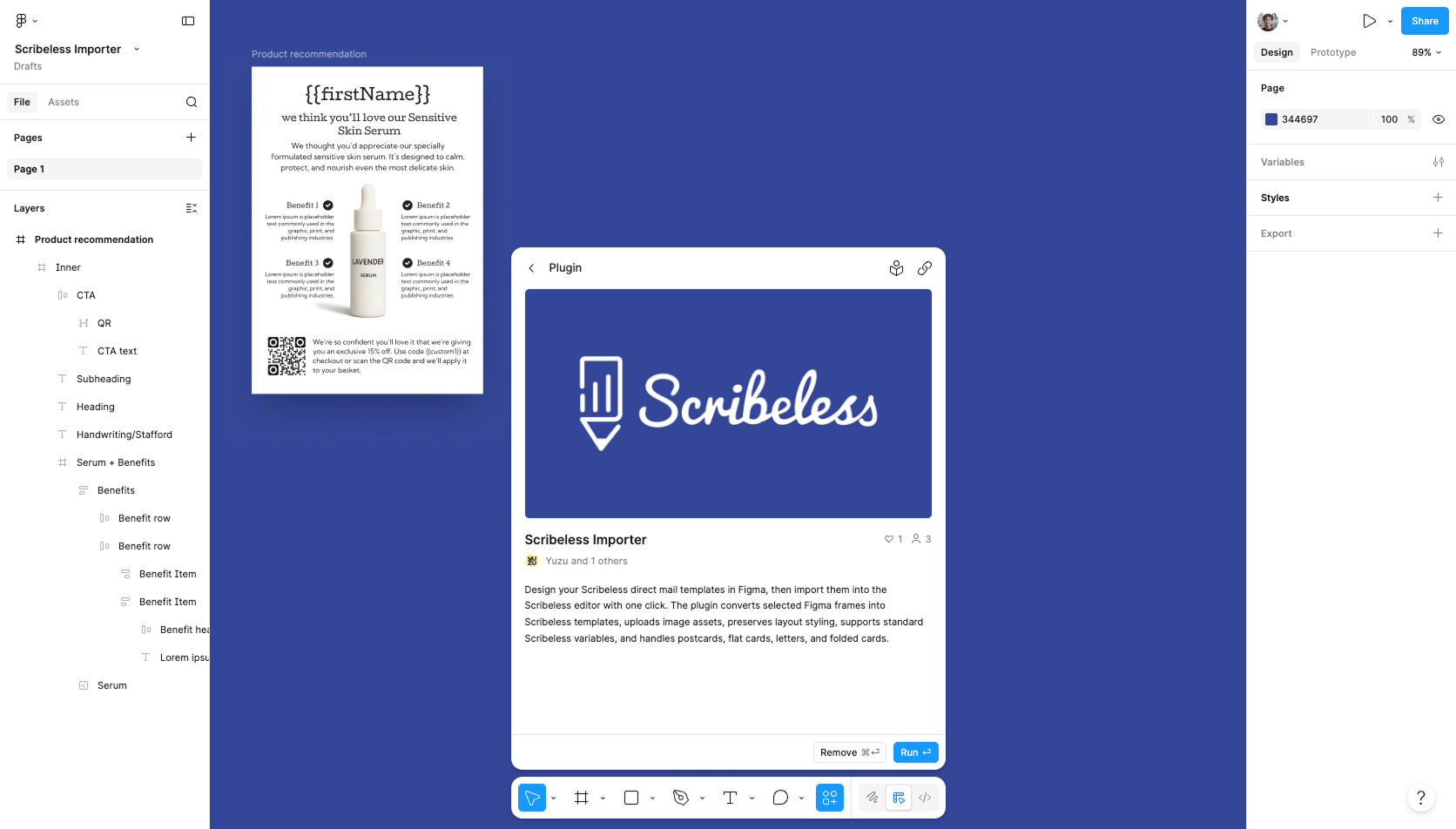
Figma Community plugin panel showing the Scribeless Importer

Template controls

Prepare variables, QR placeholders, and handwriting layers

Use the plugin to copy variable names, then name any QR or handwriting layers before creating the Scribeless template.

  • Use values such as {{firstName}}, {{company}}, and {{custom1}}
  • Keep the copied curly-brace syntax unchanged
  • Name QR layers QR, QR code, or qrcode
  • Rename handwriting layers with handwriting/<family>
Scribeless Importer variables list inside Figma

Scribeless review

Review the imported template before campaign use

Open the created template in Scribeless and check the final rendering before using it in a live campaign.

  • Check product, size, orientation, and page
  • Review images, text spacing, line breaks, and fonts
  • Confirm handwriting placement, variables, and QR destination
Imported Figma template in Scribeless with handwriting applied

Use cases

Good fits for the Figma importer

Use the plugin when the design source of truth lives in Figma and the finished template needs Scribeless production controls.

01

Design-led postcard and card templates

Let design teams build the composition in Figma, then import it into Scribeless for template review and campaign setup.

02

Product insert and offer templates

Prepare variables and QR placeholders in the design file so campaigns can personalize names, offers, codes, and destinations.

03

Handwriting-first creative

Mark the text layer that should become handwriting before import, then review the final handwriting style inside Scribeless.

Review checklist

Check the import before using the template live.

Figma and Scribeless do not recreate every design feature in exactly the same way, so the imported template should be checked before campaign use.

  1. Confirm the product, size, orientation, and page match the original Figma frame.
  2. Check images, uploaded assets, text size, line breaks, and spacing.
  3. Confirm variables use the exact Scribeless variable names.
  4. Set QR destinations and review handwriting style, color, and placement.

Before you import

  • Scribeless team access is available
  • Scribeless API key has been created
  • Selected Figma frame matches the target product
  • Variables are copied exactly from the plugin
  • QR placeholder layers are named correctly
  • Handwriting layers use a supported family name
  • Imported template is reviewed in Scribeless

Next step

Turn Figma designs into Scribeless templates.

Install the Community plugin, import a selected frame, then review the created template in Scribeless before sending.